
Install Chiami
Follow the steps on the download page. Chrome's warning about the file type is normal for apps installed from a website.
Short answers, one topic at a time.
Follow the steps on the download page. Chrome's warning about the file type is normal for apps installed from a website.
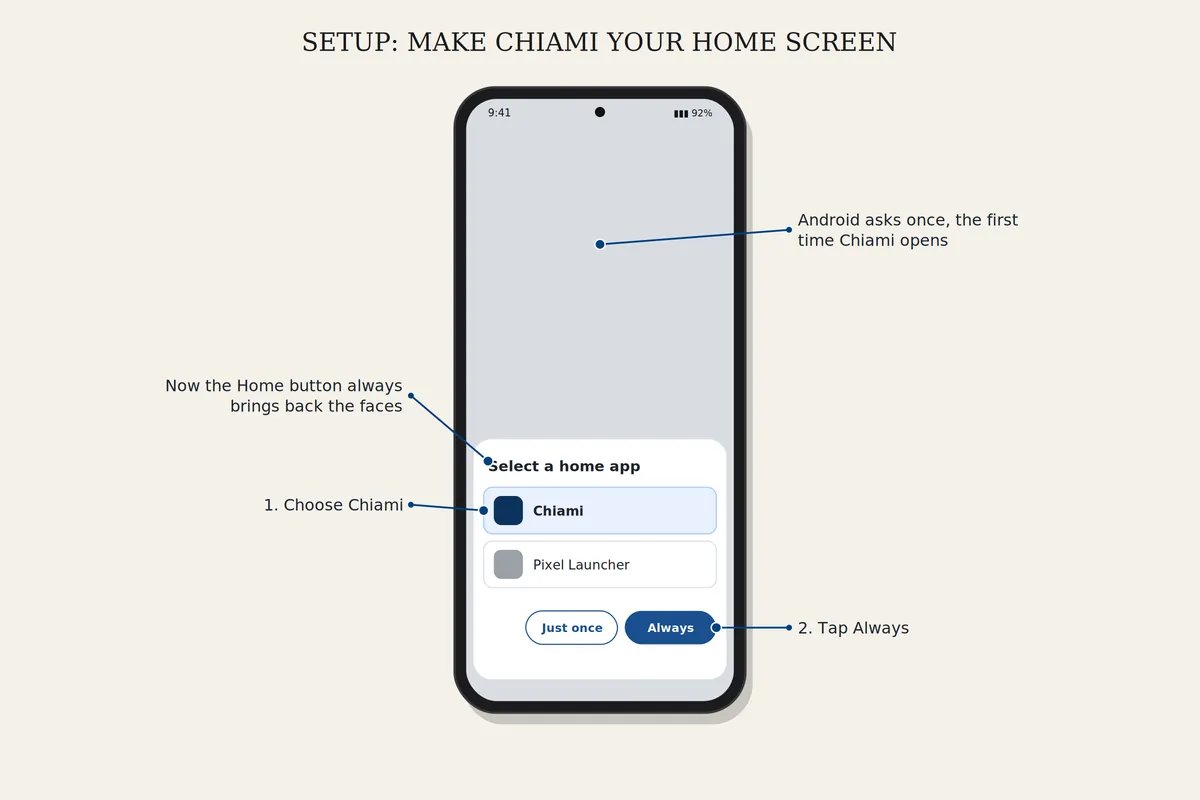
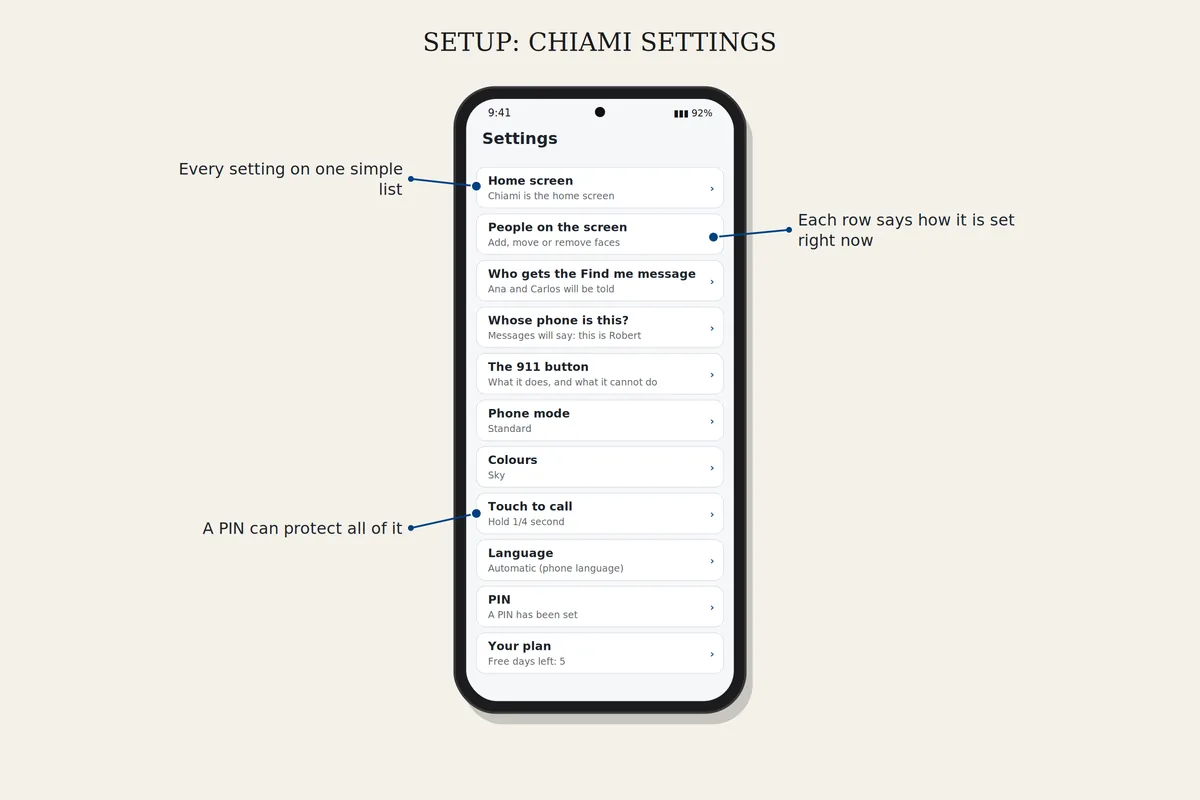
Open Chiami's Settings and tap Home screen. If the phone doesn't switch, Android opens its Default apps page: tap Home app and choose Chiami. The Home button then always brings you back to the faces.
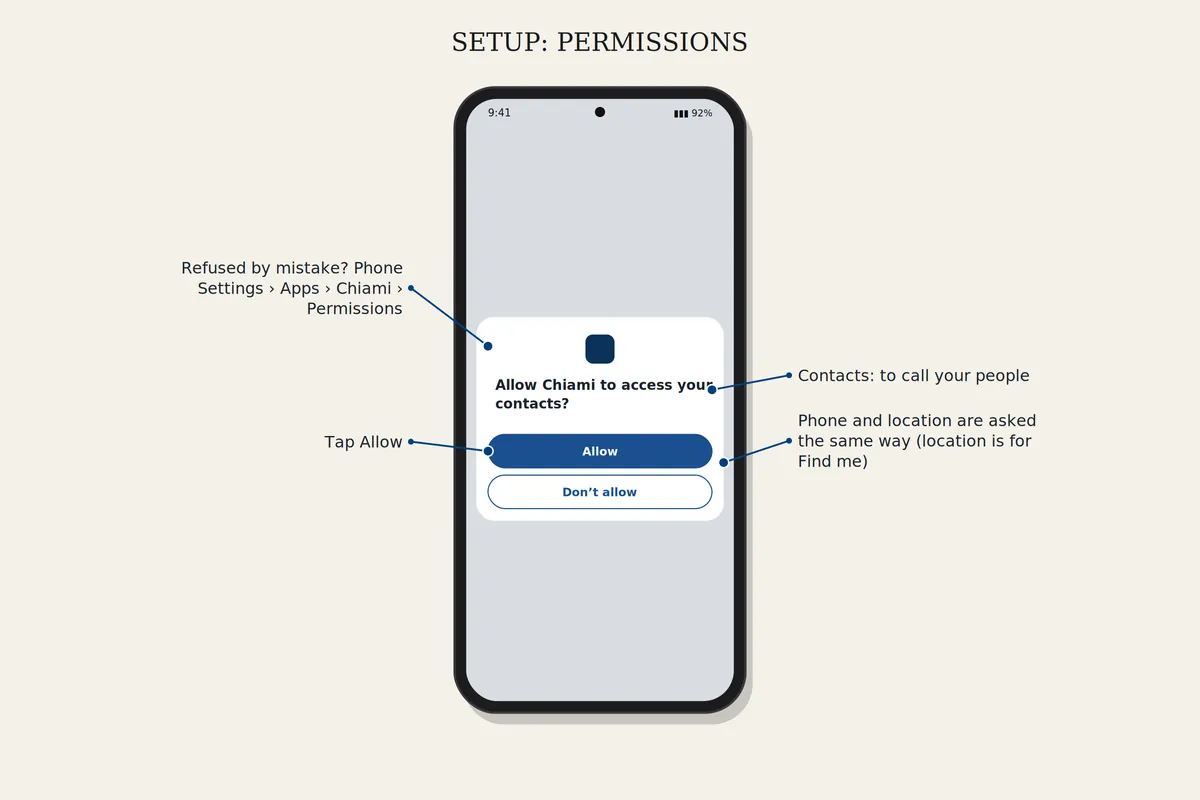
Chiami needs contacts (to call your people), phone (to place calls) and location (for Find me). If one was refused, open the phone's Settings, Apps, Chiami, Permissions, and allow it.
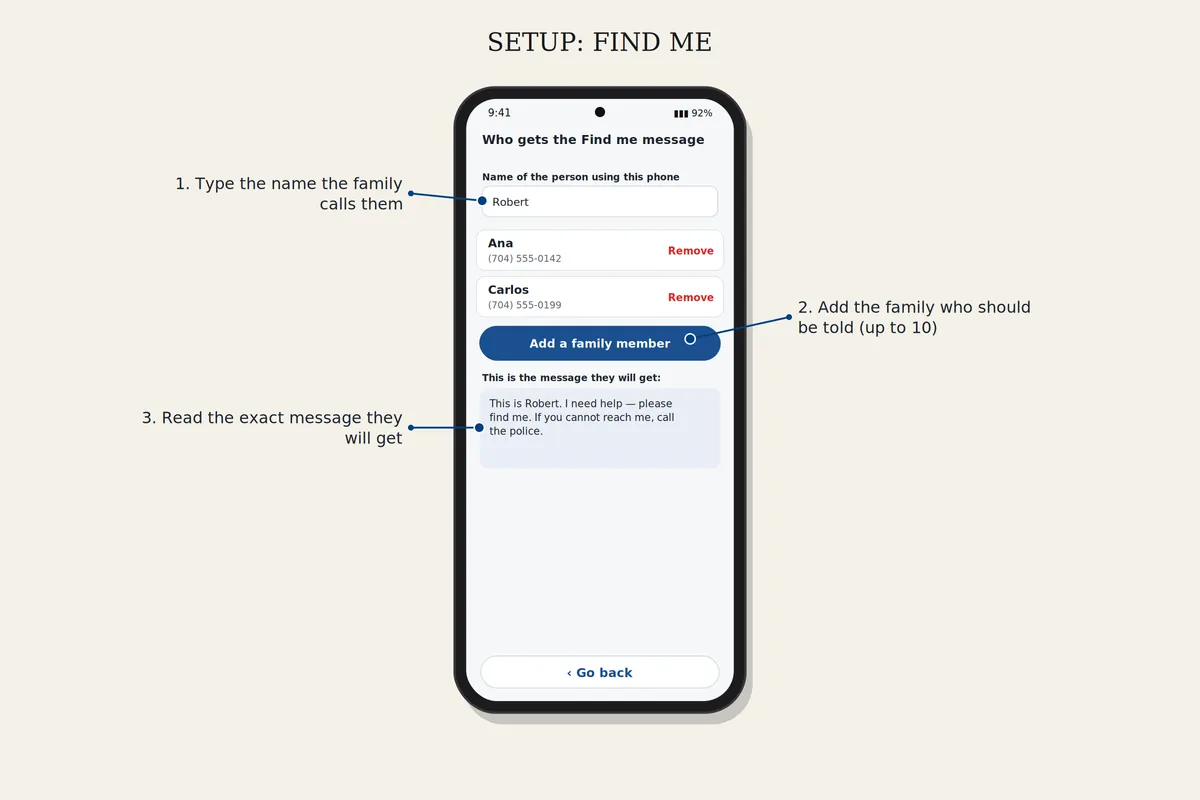
In Settings, open Who gets the Find me message and add your family. Then open Whose phone is this? and type the owner's name, so the message says who it is from.
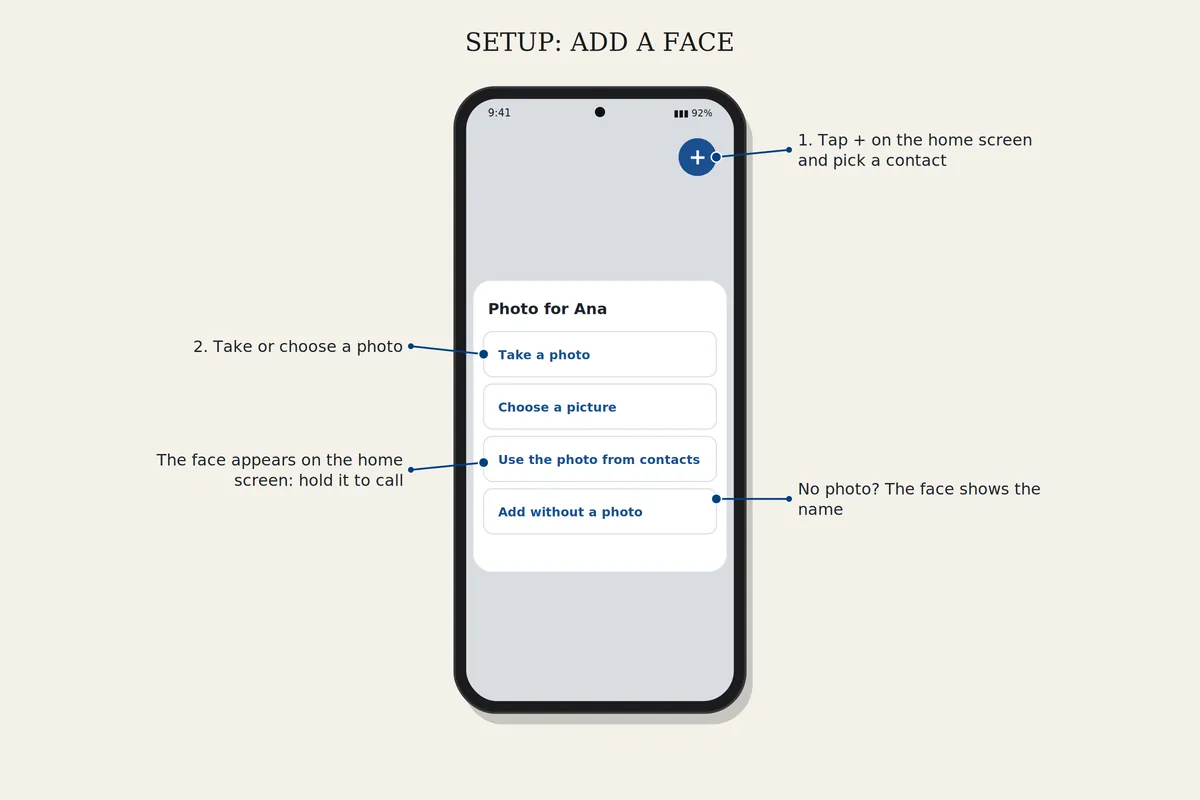
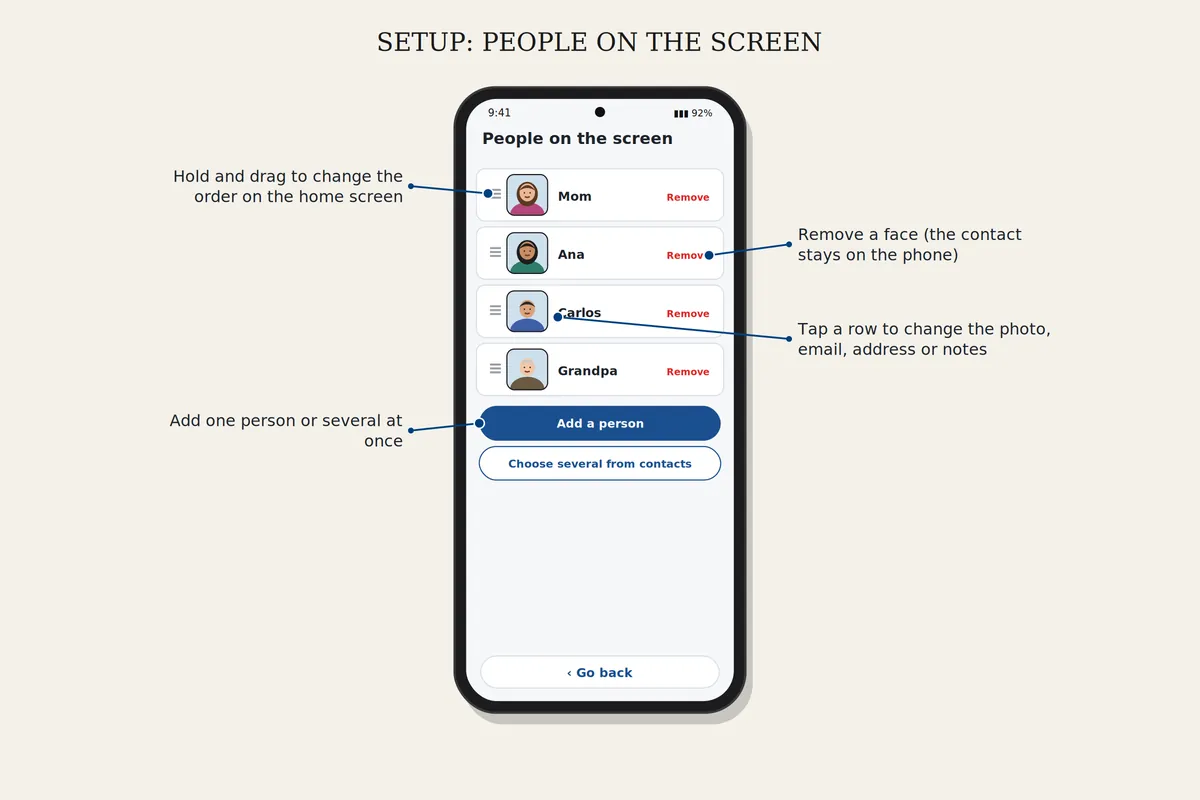
Tap + on the home screen, pick a contact and choose a photo. To move, remove or change a photo, open Settings, People on the screen.
The phone's text size is set very large. Make it one step smaller in the phone's Settings, Display, Font size. Chiami stays easy to read.
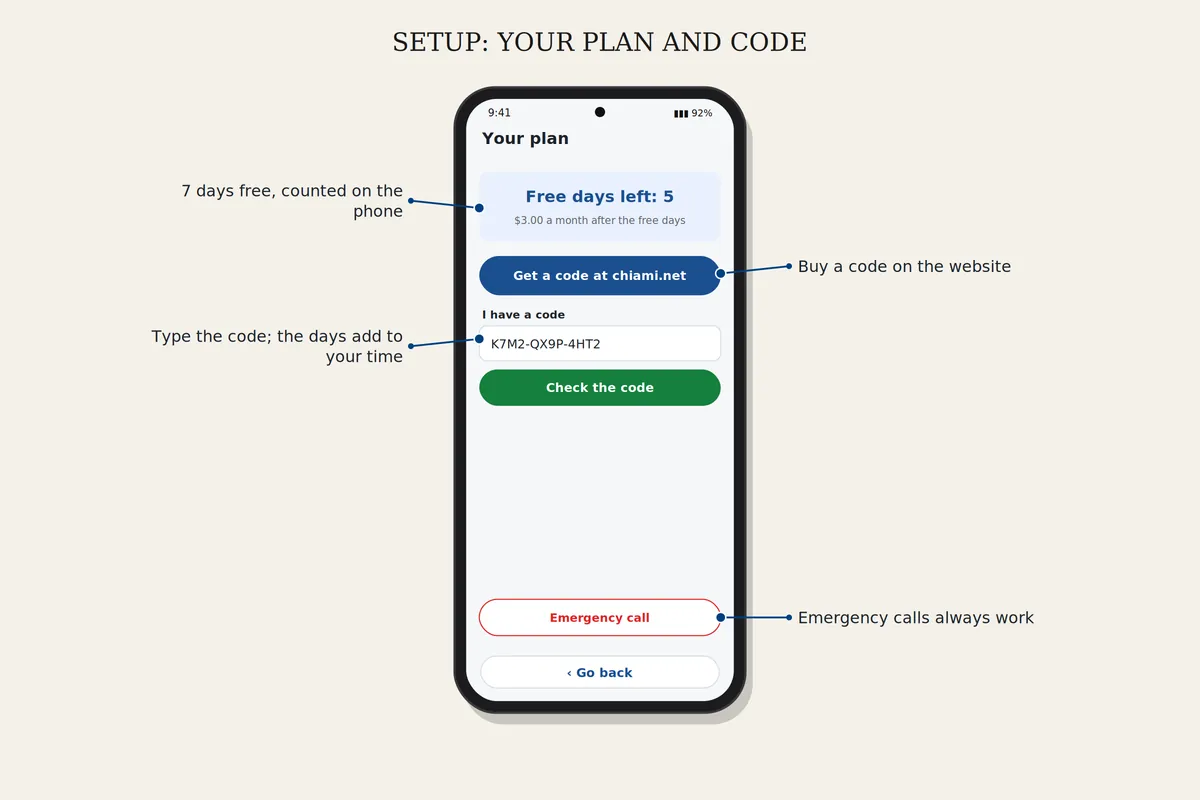
Open Settings, Your plan, I have a code. Type the code and confirm. The phone needs the internet for this one check. The days are added to any time you have left.
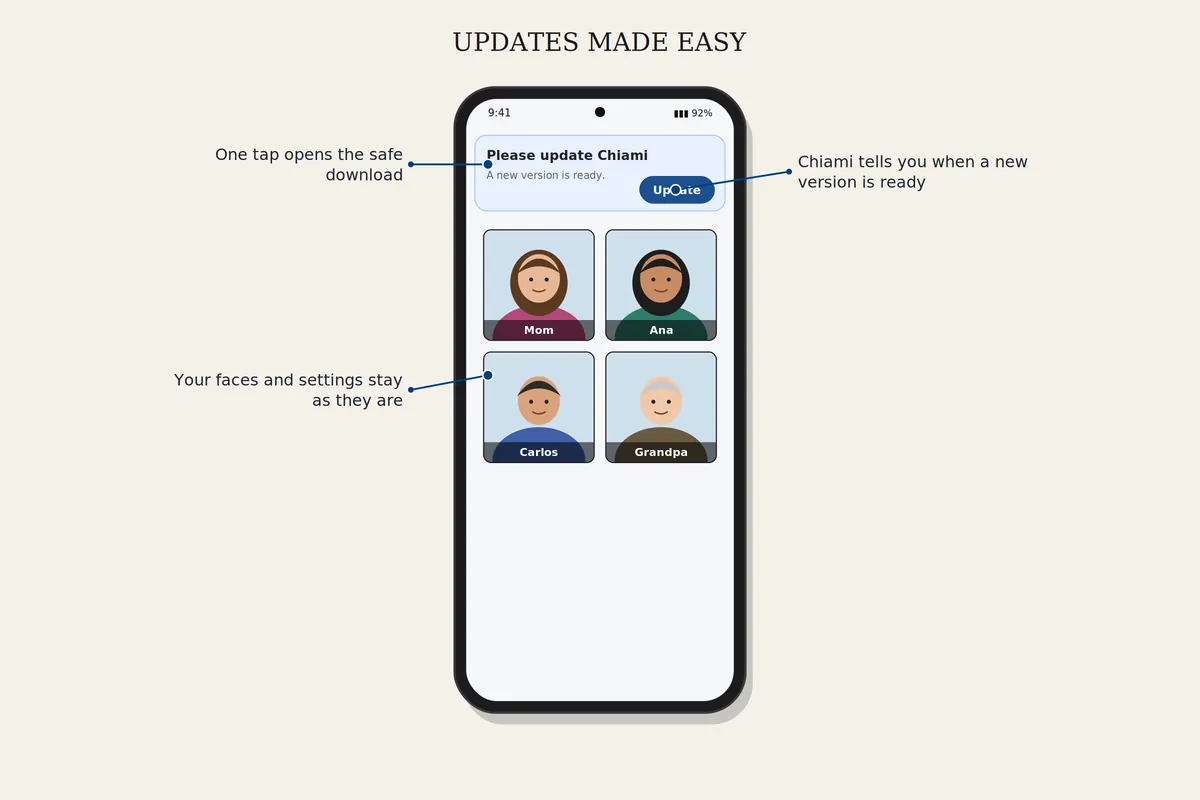
When Chiami shows Update, tap it and follow the same steps as the first download. Your faces and settings stay as they are.
Settings is a list of simple pages. If you get lost, press Go back to return. A PIN can protect the settings.
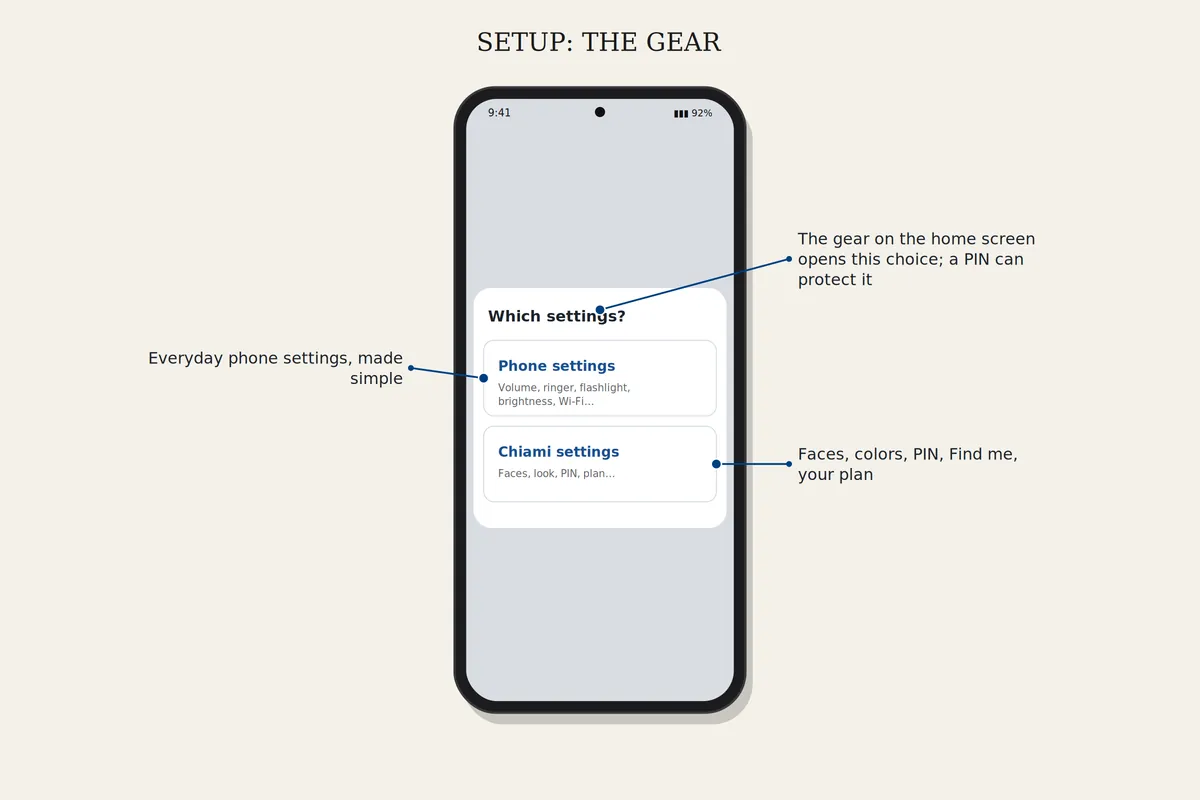
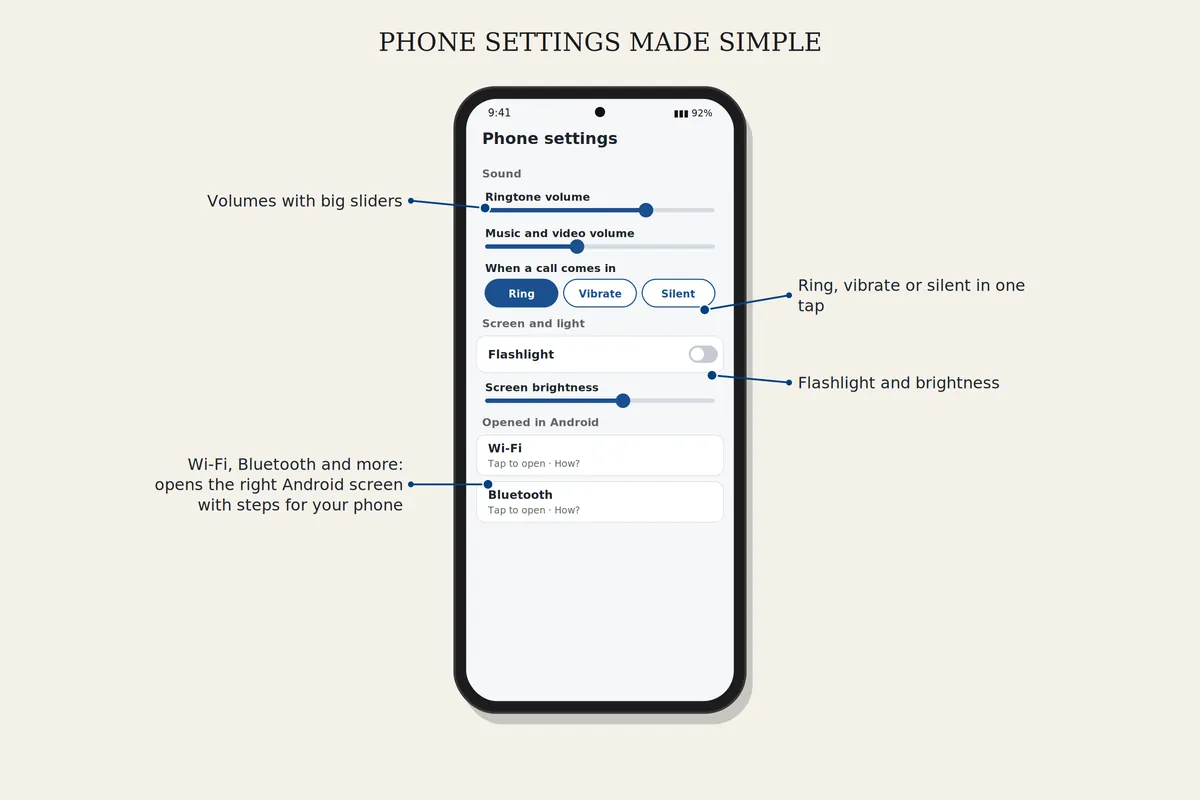
The gear opens Phone settings or Chiami settings. Volume, ring or silent, flashlight and brightness change right there. For Wi-Fi, Bluetooth and others, Chiami opens the right Android screen and shows the steps for your phone.
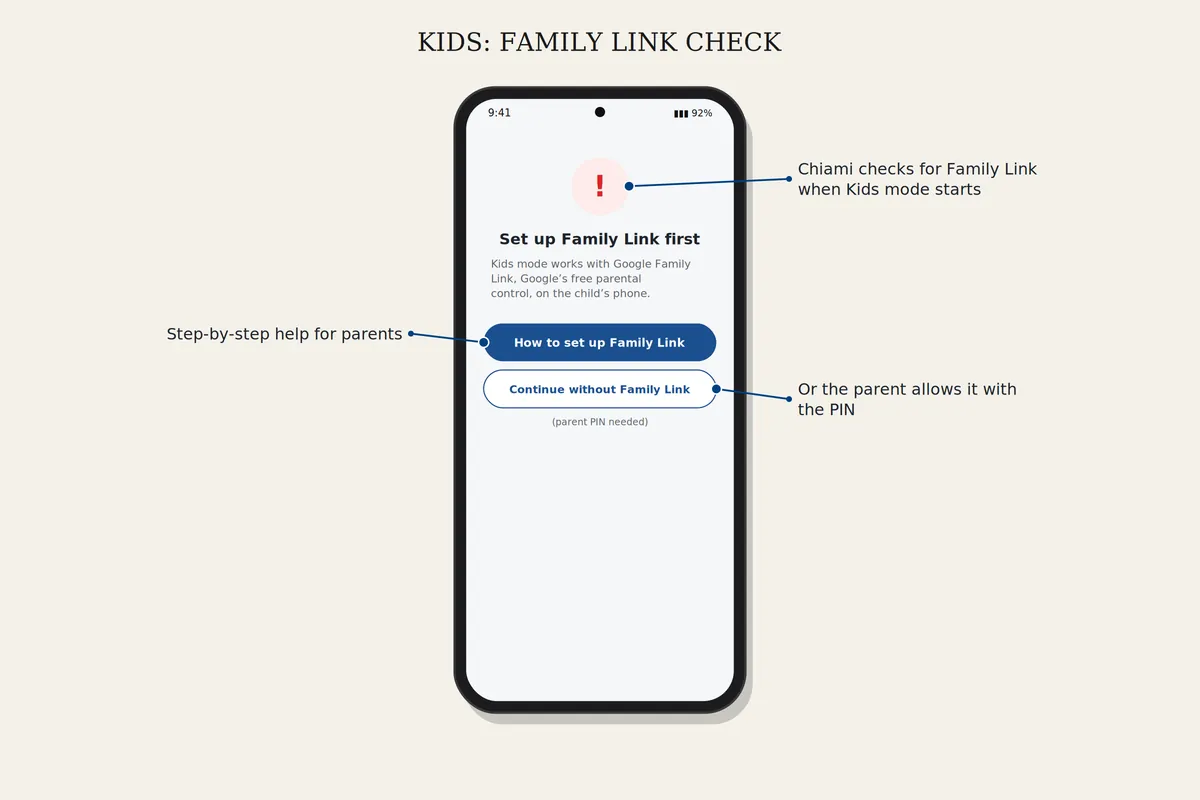
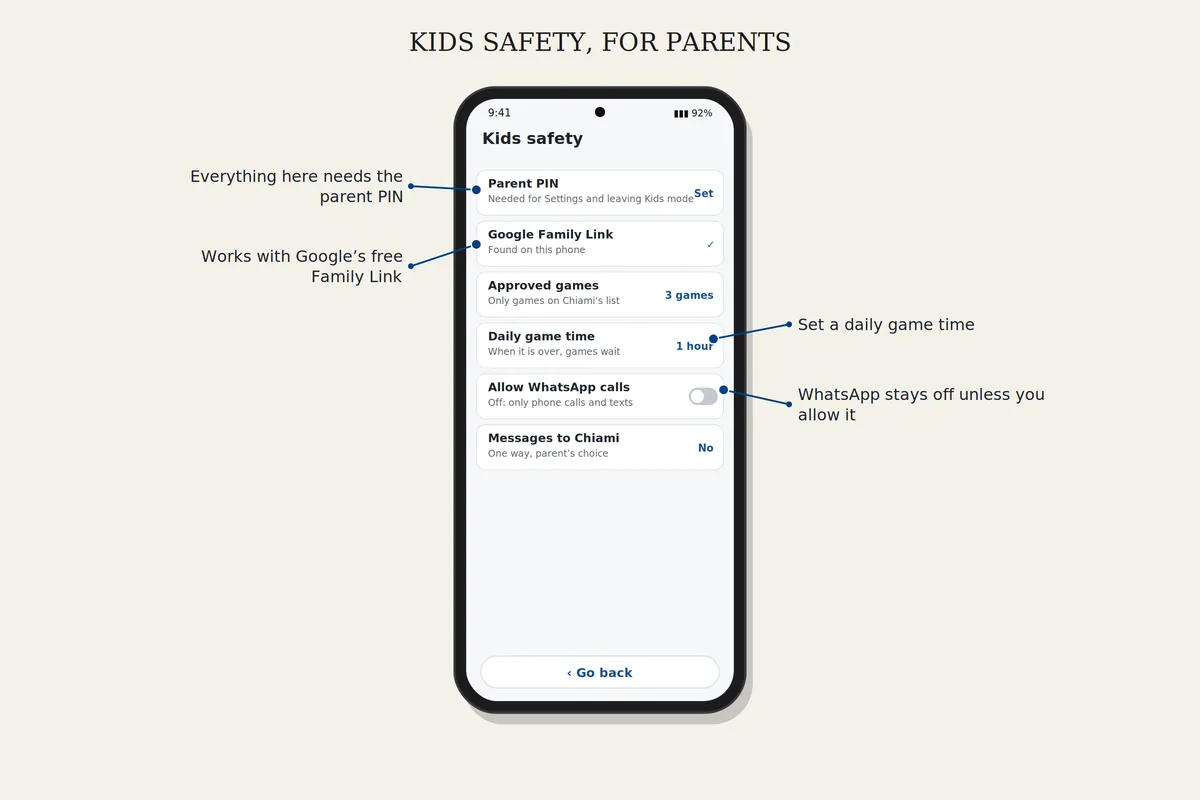
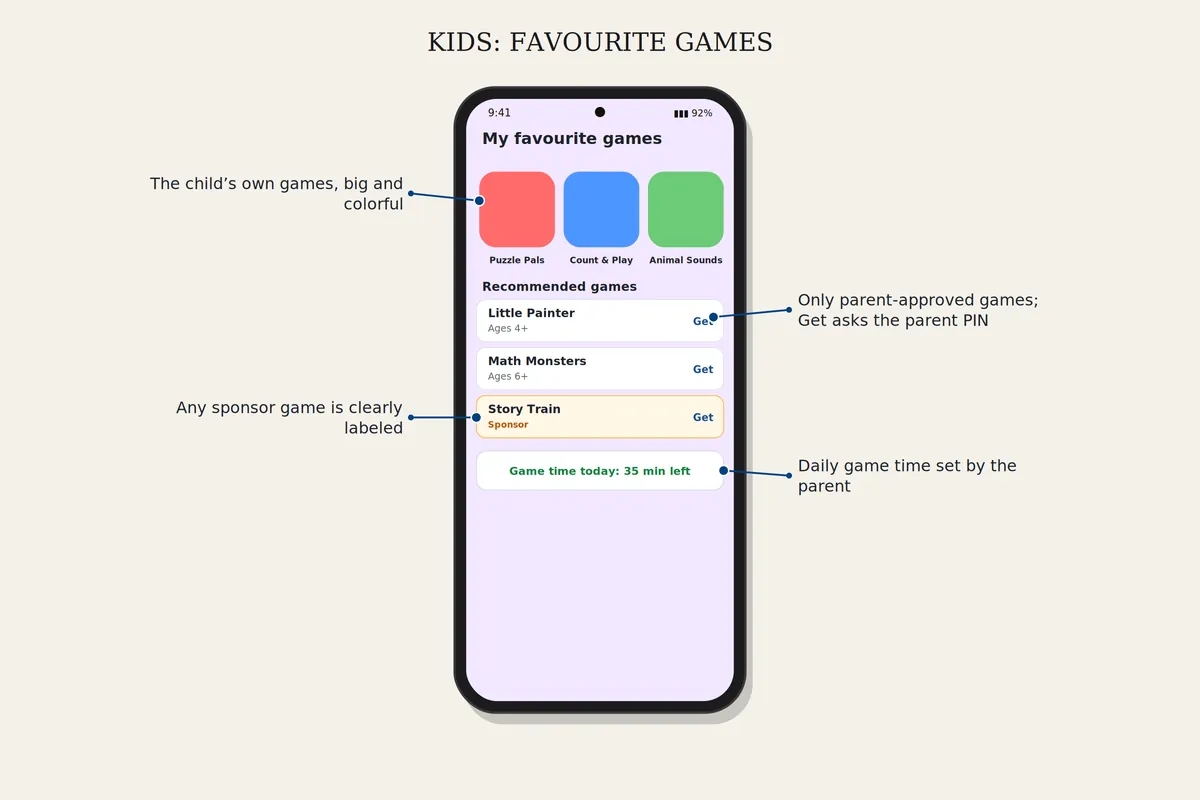
Choose Kids mode in Settings and set a parent PIN. Set up Google Family Link for the child, or use the parent override. Add games from Recommended games and set a daily game time.
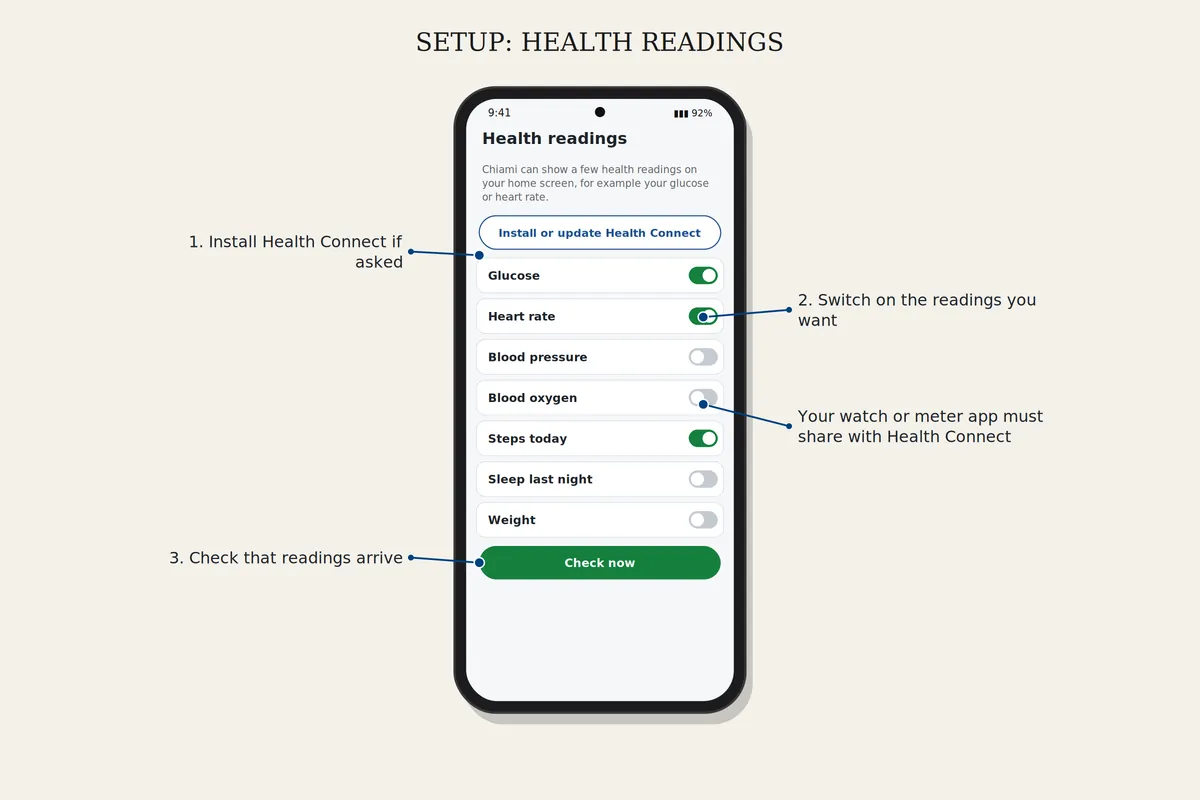
Open Settings, Health readings, and switch on the readings you want. Install Health Connect if the phone asks. Your watch or meter app must share its readings with Health Connect.
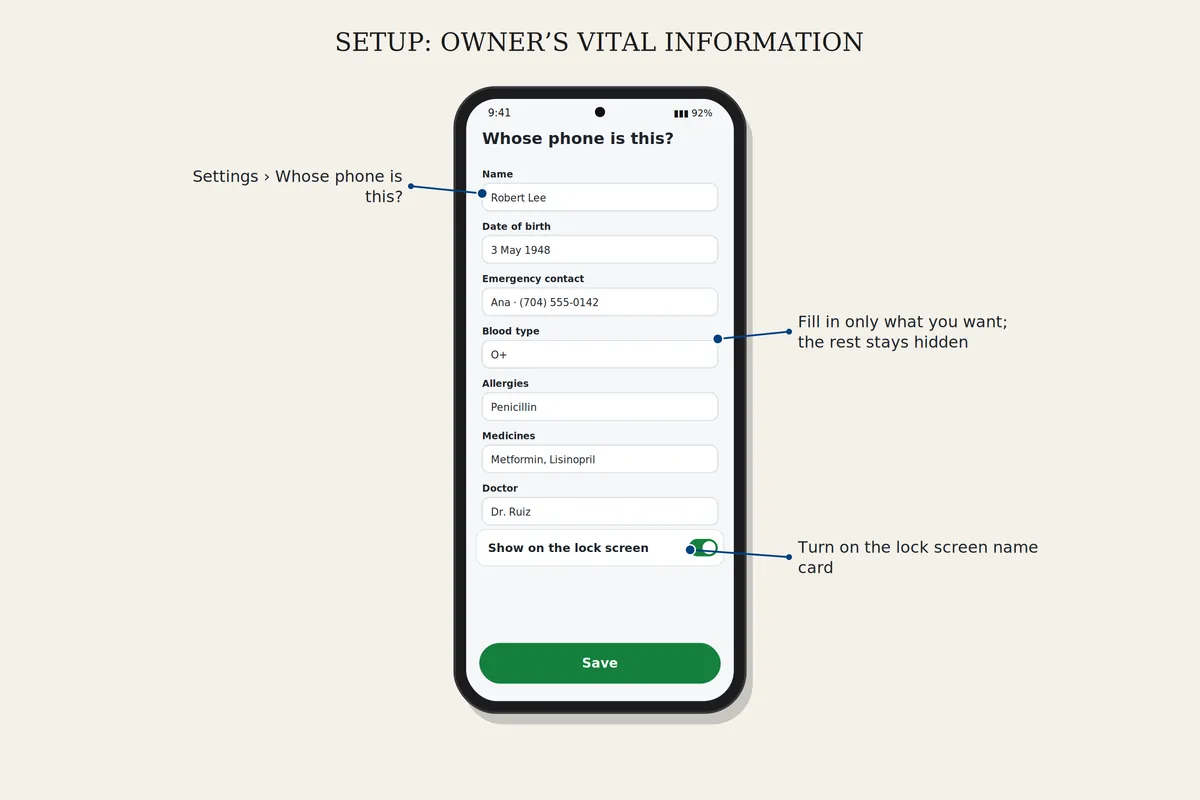
Open Settings, Whose phone is this? Fill in what you want; empty fields stay hidden. You can also show a name card on the lock screen.
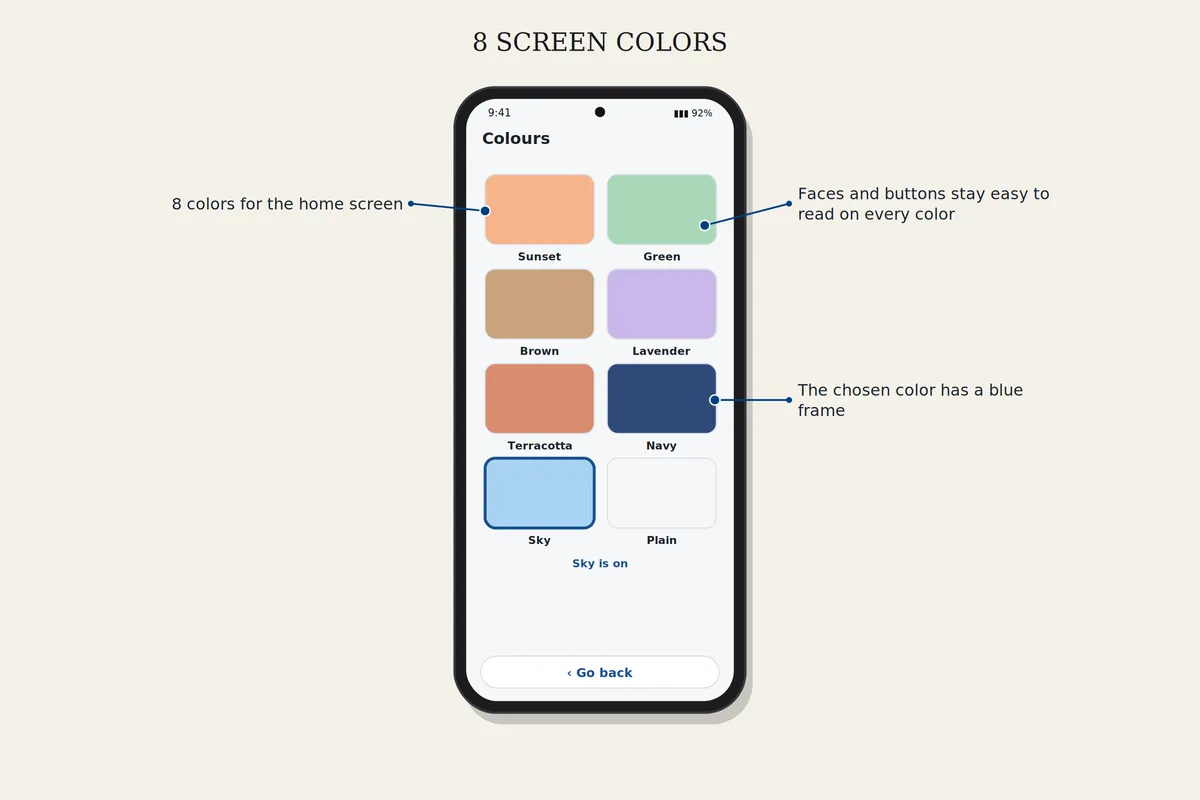
Change a face's frame in Settings, People on the screen. Change the screen color in Settings, Colours. The photos themselves never change.
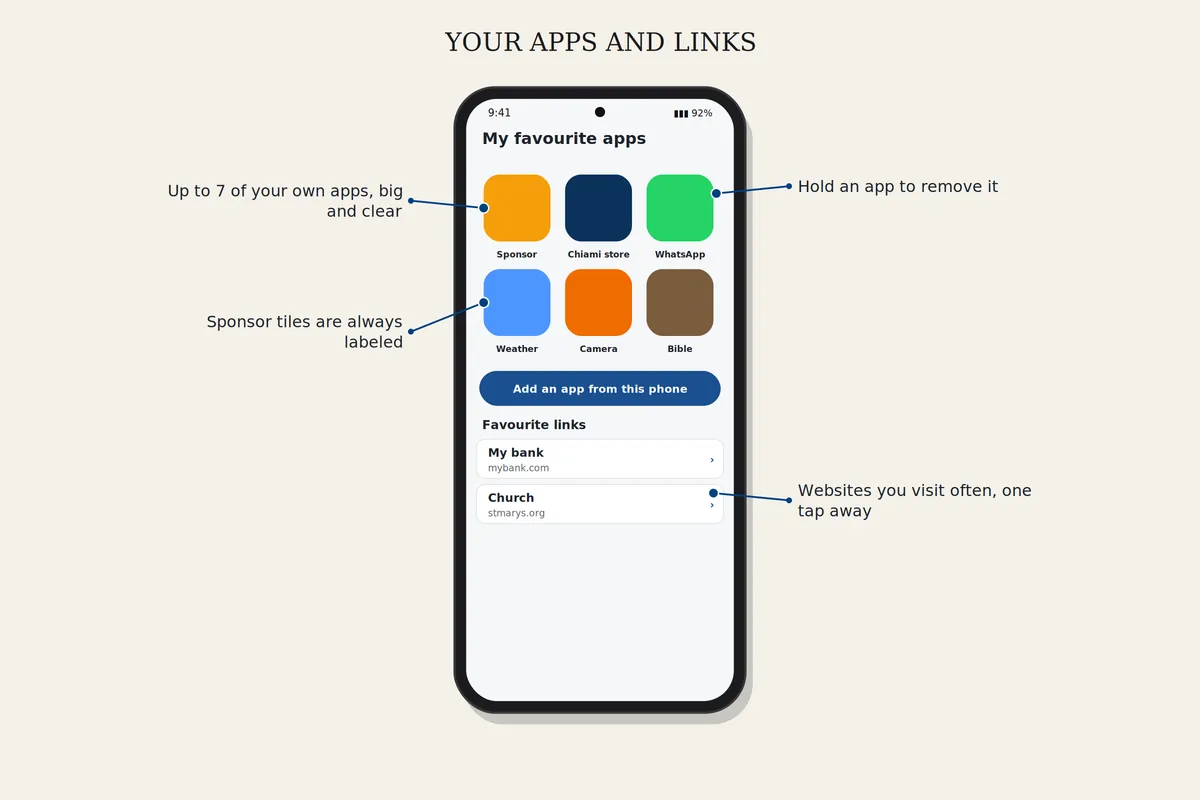
Tap the link icon on the home screen to open your saved websites. Tap + to add one.
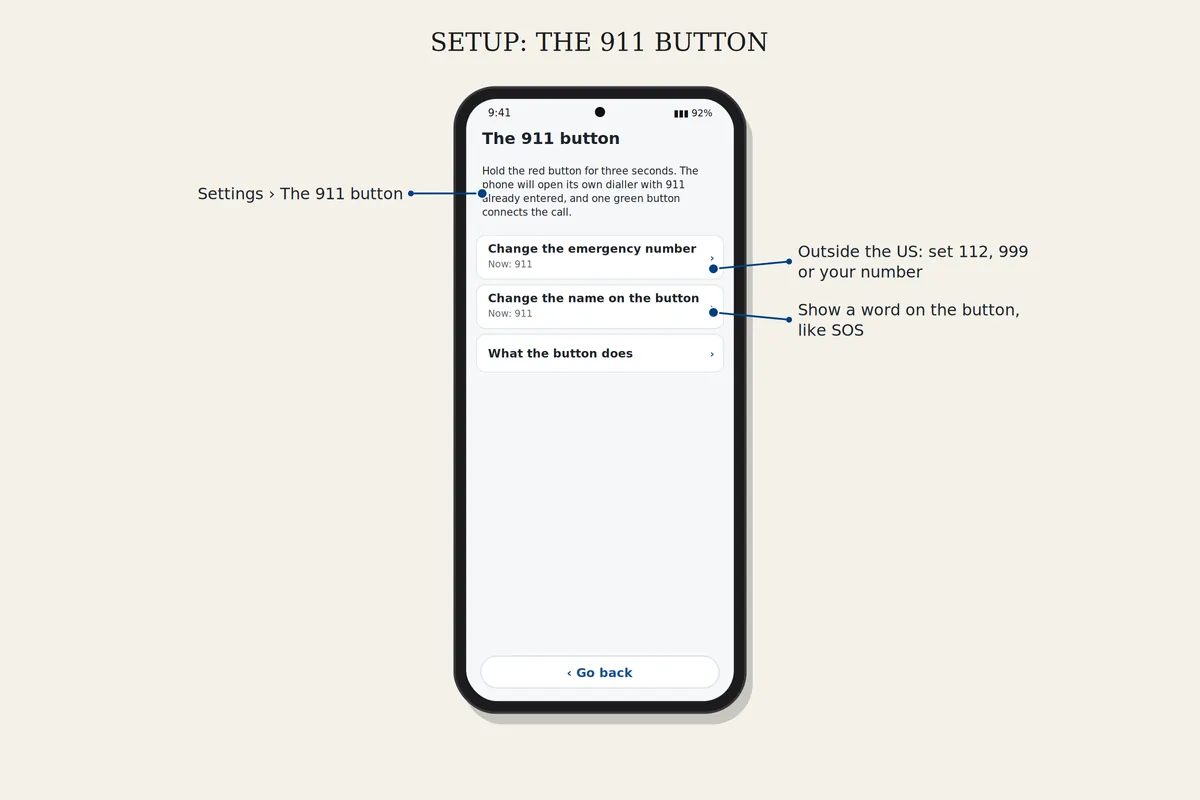
Open Settings, The 911 button. Change the emergency number for your country, change the word on the button, or read what the button does. To use it, hold the button for three seconds.
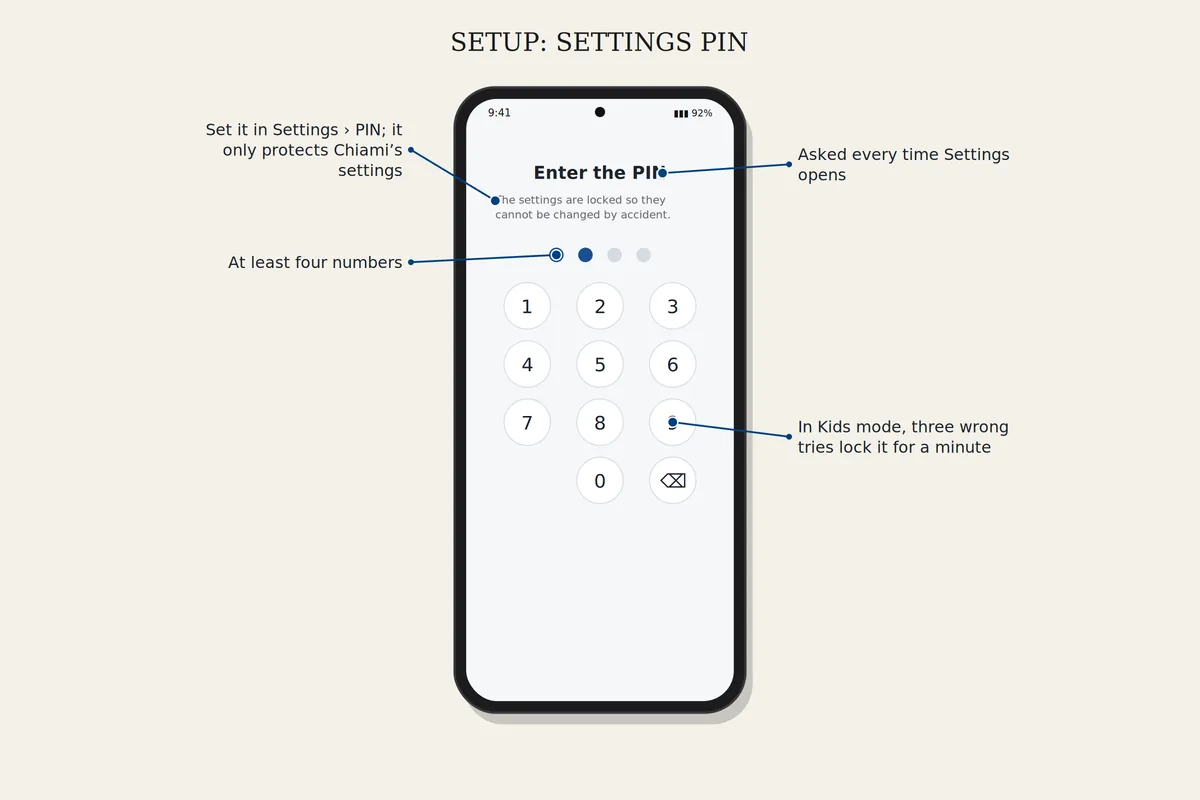
Open Settings, PIN, choose at least four numbers and type them again. Settings will ask for the PIN every time. It protects Chiami's settings only, not the phone itself.
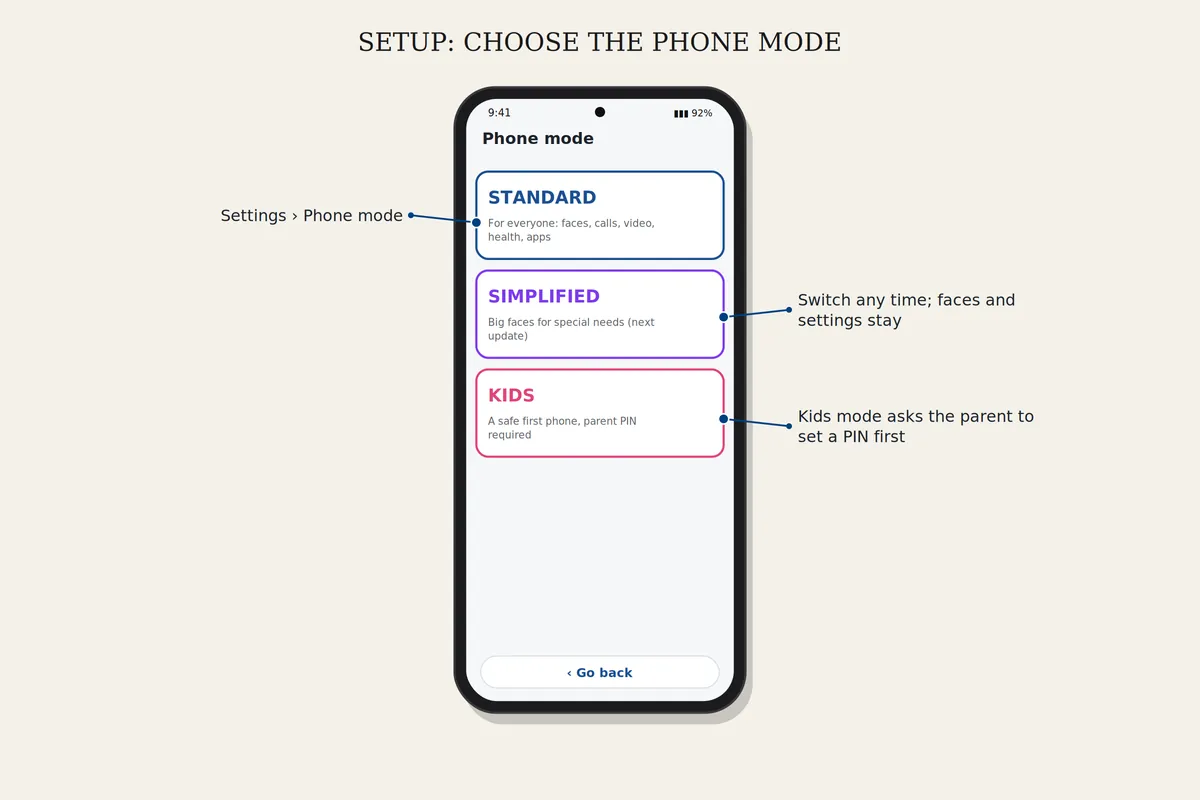
Open Settings, Phone mode, and choose the mode. Kids mode and Simplified mode ask for a PIN first. Your faces and settings stay when you switch.
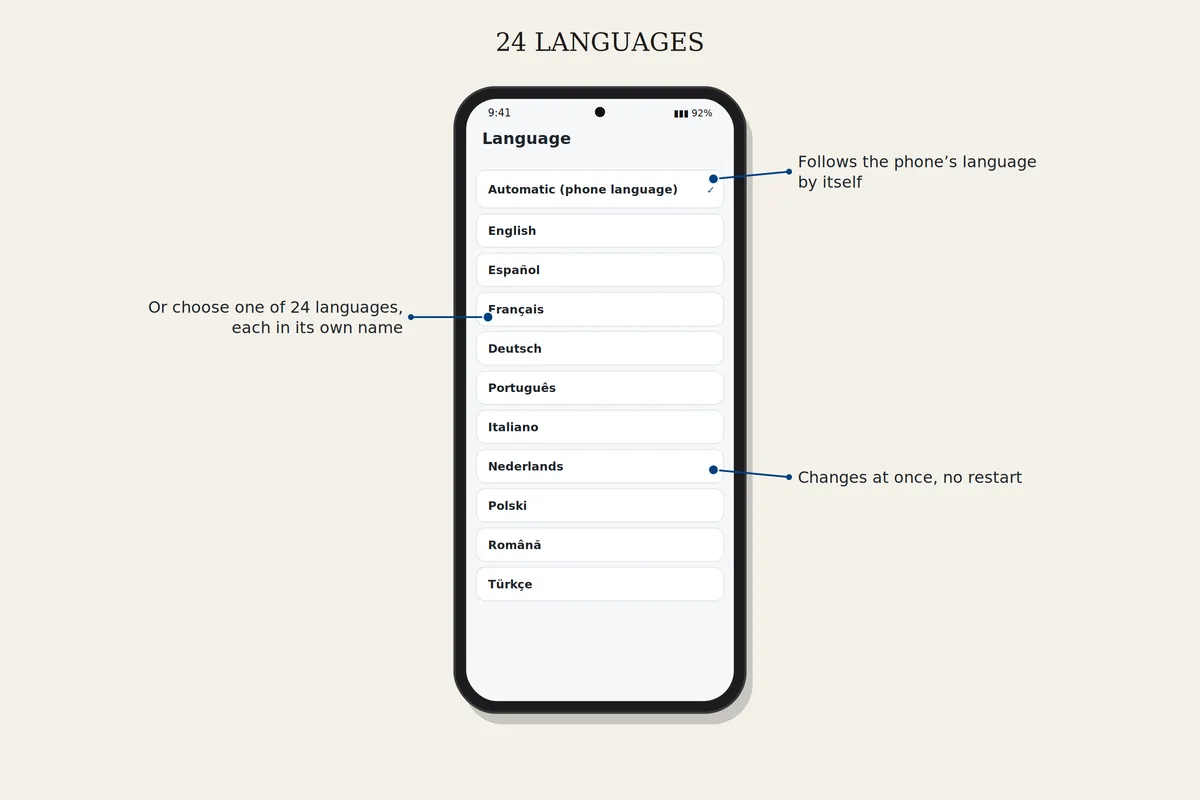
Open Settings, Language. Automatic follows the phone's language, or choose one of 24 languages. The change is immediate.
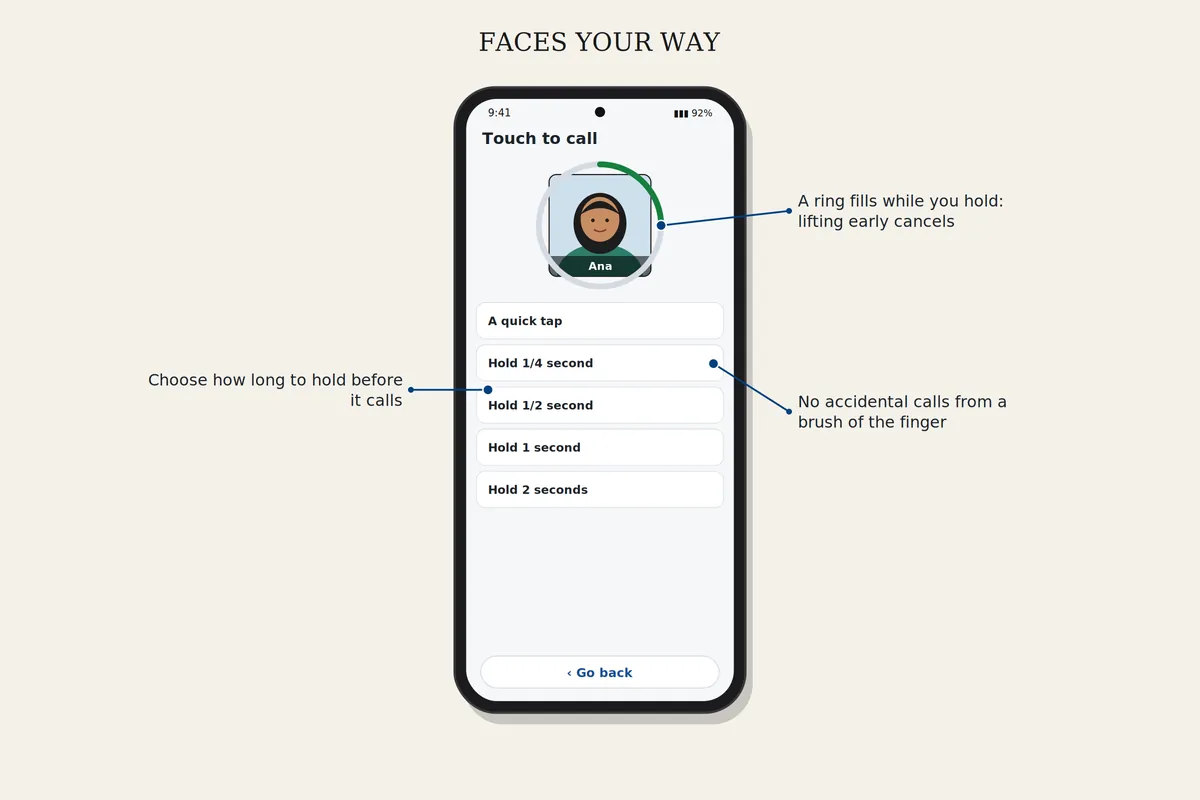
Open Settings, Touching a face, and choose Instant or An eighth of a second. The call goes when you lift your finger. Keep your finger on a face for a second instead, and that person's own settings open.
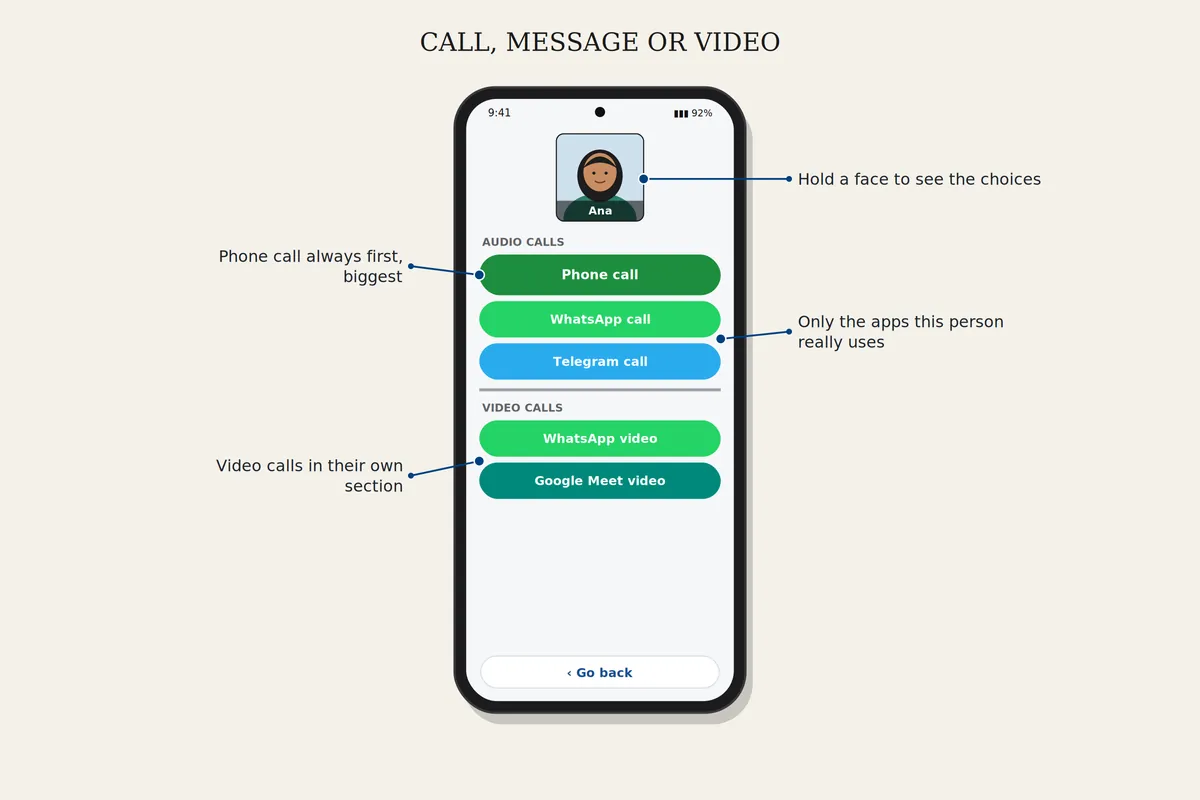
Choose Call, Message or Video call at the top of the home screen, then touch a face. To choose which app is used for a person, keep your finger on their face for a second (in Standard mode). Only the apps that person really uses are shown.
Still stuck? Write to support@chiami.net and tell us your phone's brand and what you see on the screen.